Extracting data from tables that are embedded in images used to be a painstaking manual task. Most people would open the image, try to copy‑paste cells, or re‑type the entire table into a spreadsheet—processes that are not only time‑consuming but also prone to errors. The difficulty grows when the image is a low‑resolution scan, a screenshot with hidden grid lines, or a photograph taken from an angle. In such cases, traditional copy‑paste methods fail, and the only reliable way to obtain a clean, editable table is to use an optical character recognition (OCR) engine that understands the structure of tables.
The Table OCR tool from FileFormat solves this exact problem. It is a free, online service that accepts any common image format (JPEG, PNG, BMP, etc.) and intelligently detects tabular data within the picture. Once the table is recognized, the tool exports the data directly to an Excel workbook (.xlsx), preserving rows, columns, and even merged cells when possible. Because the service runs entirely in the browser, there is no need to install bulky software, and all processing happens securely on FileFormat’s servers.
This tool is perfect for professionals who frequently work with reports, invoices, or research data that are only available as images. Accountants can quickly pull financial tables from scanned receipts, marketers can extract performance metrics from infographic screenshots, and students can convert textbook tables into editable spreadsheets for analysis. The supported input is any image file, making the solution flexible enough for screenshots, scanned PDFs (converted to images first), and even photos taken on a smartphone.
Real‑world scenarios illustrate the value of a fast, reliable Table OCR. Imagine a sales manager who receives weekly performance snapshots as PNG files from a partner. Manually re‑entering those numbers into a master Excel file would take valuable time away from strategic planning. With Table OCR, the manager simply uploads the PNG, lets the engine extract the table, and downloads a ready‑to‑use Excel file in seconds. Similarly, a researcher dealing with historical data published only as scanned tables can digitize years of information without spending days on data entry.
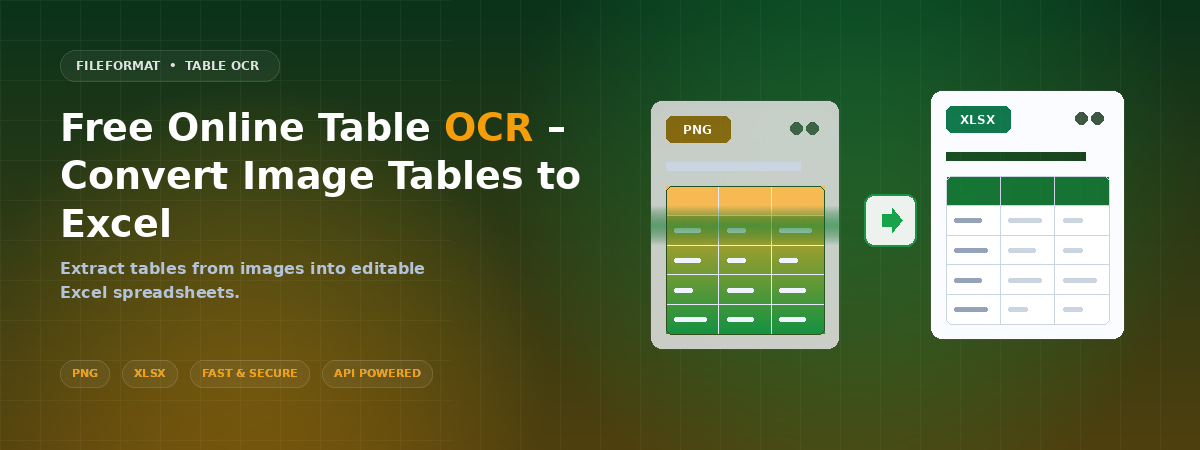
If you need a quick way to turn image‑based tables into Excel spreadsheets, try the Table OCR tool today.
Why Converting Tables from Images to Excel Matters
Tables are the backbone of structured data. They allow us to compare figures, spot trends, and perform calculations that would be impossible with unstructured text. When a table lives inside an image, its usefulness drops dramatically because the data cannot be sorted, filtered, or analyzed without first being extracted. This extra step often becomes a bottleneck in workflows that rely on timely data processing.
Automation of table extraction eliminates the manual labor that traditionally accompanies data digitization. By using OCR technology specifically tuned for tables, the tool can recognize column headers, numeric formats, and even complex layouts such as multi‑row headers or merged cells. The result is an Excel file that mirrors the original layout, saving users from having to rebuild the structure from scratch. This accuracy is especially important for financial data, where a misplaced decimal point can have serious consequences.
Beyond speed and accuracy, converting tables to Excel enhances collaboration. An Excel workbook can be shared instantly with teammates, who can then add comments, create pivot tables, or integrate the data into larger dashboards. In contrast, an image file is static and requires every collaborator to perform the same extraction process, leading to inconsistencies and duplicated effort. The online nature of the Table OCR tool also means that users can work from any device—desktop, laptop, or tablet—without worrying about operating system compatibility.
Another compelling reason to adopt this workflow is data security. Since the conversion happens on FileFormat’s secure servers and the files are deleted after processing, sensitive information never resides on a local machine longer than necessary. This is crucial for industries like healthcare or finance, where compliance with data protection regulations is mandatory. The free, no‑installation requirement further reduces the attack surface compared to installing third‑party OCR software that may have hidden vulnerabilities.
Finally, the ability to convert tables from images opens up new possibilities for data mining and machine learning. Researchers can feed the extracted Excel files into analytical pipelines, enabling large‑scale studies that would otherwise be impossible due to manual data collection constraints. By turning static images into structured datasets, the Table OCR tool acts as a bridge between visual information and actionable insights.
How to Convert Tables to Excel Online
In the following steps you will learn how to use the free Table OCR tool to turn any image containing a table into a fully editable Excel spreadsheet.
Visit the online Table OCR tool. Open your web browser and go to the Table OCR page. The interface is clean and requires no registration, so you can start immediately.
Upload your image file. Click the “Upload” button and choose the image from your local storage, or connect your Dropbox or Google Drive account to select the file directly from the cloud. The tool accepts common image formats such as JPEG, PNG, and BMP.
Configure the OCR settings (if needed). After the image loads, you can optionally adjust language settings or enable “Detect Table Borders” for better accuracy on low‑contrast images. Most standard tables are recognized automatically, but these options help fine‑tune the result.
Start the conversion. Press the “Convert to Excel” button. The OCR engine scans the image, identifies the table structure, and generates an .xlsx file. A progress bar shows the status, and you will receive a notification when the file is ready.
Download or share the result. Once the conversion finishes, click the “Download Excel” button to save the file to your computer, or copy the shareable link to send it to colleagues. The download is provided as a single Excel file, and the link remains active for a limited time for secure sharing.
These steps illustrate how fast and straightforward it is to transform image‑based tables into usable Excel spreadsheets. The entire process takes only a few clicks, and because the service is free and online, you can perform as many conversions as needed without worrying about licensing or installation.
Conclusion
Converting tables from images to Excel has never been easier thanks to FileFormat’s free Table OCR tool. It removes the tedious manual entry, preserves the original table layout, and delivers a ready‑to‑use spreadsheet in seconds. Whether you are an accountant, researcher, or marketer, this online solution streamlines your workflow and keeps your data secure. Give the tool a try today and experience the speed of instant table extraction for yourself.
Ask a Question
If you have any questions or inquiries, feel free to reach out to us on our free support forum.