When a PDF document grows beyond its intended length, the extra pages can make it look unprofessional, increase file size, and even cause confusion for readers. Manually editing a PDF with desktop software often requires a paid license, a steep learning curve, or the installation of bulky applications that may not be allowed on work computers. This friction becomes especially noticeable for students who need to trim lecture notes, freelancers who must send concise proposals, or anyone who simply wants to remove a blank page after merging several files.
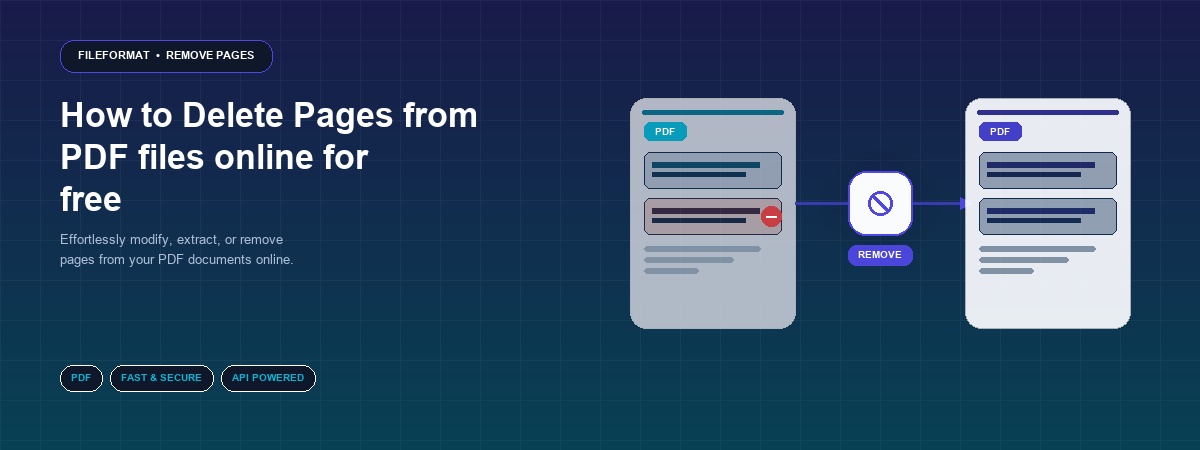
The online PDF page removal tool solves this problem with a single click. It is a free, browser‑based service that lets you upload a PDF, select the pages you want to discard, and download a cleaned‑up version—all without installing software. Because the processing happens on FileFormat’s secure servers, the tool works on any operating system—Windows, macOS, Linux, or even mobile browsers. The only supported format is PDF, which means you can handle everything from simple one‑page flyers to multi‑hundred‑page reports.
Real‑world scenarios illustrate why a quick page‑deletion option is essential. Imagine you have a contract that includes an outdated appendix; you can instantly strip that section before sending the final version to a client. Or consider a teacher who needs to remove a blank cover page from a batch of student submissions—uploading each file individually would be tedious, but the online tool makes it painless. Even legal professionals appreciate the ability to redact entire pages that contain sensitive information, ensuring confidentiality without the need for specialized software.
Because the service is FREE, ONLINE, and requires NO INSTALLATION, you can start the process from any device with an internet connection. Whether you store your PDFs locally, on Dropbox, or in Google Drive, the tool integrates with all three sources, giving you flexibility and speed. The result is a leaner PDF that loads faster, prints correctly, and presents only the content you truly need.
Why Deleting PDF Pages Matters
First, removing unnecessary pages reduces the overall file size, which is crucial when sharing documents via email or uploading them to cloud storage. Large PDFs can exceed attachment limits, cause slow downloads, and consume valuable bandwidth. By trimming the document to its essential pages, you ensure that recipients can open and view the file instantly, improving communication efficiency.
Second, a concise PDF conveys professionalism. Clients, colleagues, or reviewers often skim documents quickly; extra blank or irrelevant pages can distract from the core message and give the impression of carelessness. A well‑structured PDF that starts and ends exactly where it should reflects attention to detail and respect for the reader’s time.
Third, privacy and compliance considerations sometimes demand the removal of entire pages that contain confidential data. Redacting a single paragraph is straightforward, but eliminating a whole page that holds tables, images, or signatures is safer and less error‑prone. An online page remover provides a quick way to excise such content without the risk of accidentally leaving remnants behind.
Fourth, many workflows involve merging multiple PDFs into a single file. The resulting document often contains duplicate title pages, table of contents, or separator pages that need to be removed afterward. Instead of opening a heavyweight desktop editor, you can use the online tool to clean the merged file in minutes, keeping the workflow smooth and cost‑effective.
Finally, the accessibility of a free web‑based solution democratizes PDF editing. Small businesses, non‑profits, and students who cannot afford premium software still gain the ability to produce polished, page‑perfect documents. The tool’s compatibility with Dropbox and Google Drive also means you can work directly from the cloud, eliminating the need to download and re‑upload large files.
How to Delete Pages Online
In the following steps you will learn how to quickly remove unwanted pages from any PDF using the free online service. The process is straightforward, works on any device, and finishes in just a few minutes.
- Visit the online PDF page removal tool by navigating to the online PDF page removal tool in your web browser. The homepage presents a clean interface with a prominent “Upload PDF” button, ready for your file.
- Upload your PDF from one of three sources: select a file from your computer’s local storage, connect to your Dropbox account, or choose a file stored in Google Drive. The upload completes within seconds for most documents.
- Select the pages you want to delete using the visual thumbnail view that appears after the upload. You can click individual page numbers, drag to select a range, or type specific page numbers into the input box for precise control.
- Confirm the deletion by clicking the “Remove Pages” button. The tool processes the request on FileFormat’s secure servers, preserving the original content order while omitting the pages you specified.
- Download the cleaned PDF as a single file. The result is offered as a direct download, a ZIP archive for multiple files, or a shareable link that you can copy and send to anyone without needing to attach the file.
- Optional: Save the new file back to the cloud by clicking the “Save to Dropbox” or “Save to Google Drive” icons. This step ensures your updated PDF is instantly available wherever you store your documents.
These steps illustrate how the entire workflow—from uploading to downloading—takes only a few clicks, making page removal fast, reliable, and completely free of hassle.
Conclusion
Deleting unwanted pages from a PDF no longer requires expensive software or technical expertise. With the free online PDF page removal tool, you can trim file size, improve readability, and protect sensitive information in just a few minutes. The service works with PDFs stored locally, on Dropbox, or in Google Drive, and delivers the cleaned document instantly. Give the tool a try today and experience how simple PDF editing can be, no matter the device or operating system you use.
Ask a Question
If you have any questions or inquiries, feel free to reach out to us on our free support forum.