Merging Microsoft Publisher (PUB) files has traditionally been a cumbersome task. Most desktop publishing suites expect you to open each file, copy its contents, and paste them into a master document—an approach that quickly becomes error‑prone when dealing with dozens of files. Even when you manage to copy everything correctly, differences in page sizes, margins, and styles can cause layout glitches that are hard to spot until the final document is printed. For teams that need to combine multiple project briefs, newsletters, or marketing collateral into a single cohesive file, the manual method wastes valuable time and often results in inconsistent branding.
The Free Online PUB Merger from FileFormat eliminates these headaches. It is a web‑based utility that lets you upload several PUB files and instantly merges them into one seamless document. Because the service runs entirely in the browser, there is no need to install any software, and it works on any operating system—Windows, macOS, or Linux. The tool supports the native PUB format, preserving all original layouts, images, and text styles while stitching the pages together in the order you specify.
This solution is ideal for graphic designers, marketing teams, and office administrators who regularly exchange Publisher files. Whether you are consolidating weekly newsletters, assembling a portfolio of product flyers, or preparing a batch of event programs, the online merger handles the heavy lifting. The process is secure: files are uploaded over HTTPS, processed on FileFormat’s servers, and automatically deleted after the merge is complete, ensuring your proprietary designs stay private.
Because the merger works directly with PUB files, you avoid the extra conversion step that many other tools require (such as converting to PDF first). This means faster processing, fewer quality losses, and a smoother workflow for anyone who prefers to keep their source files in the original format. The tool also offers a preview of the merged document before you download, giving you confidence that the final output meets your expectations.
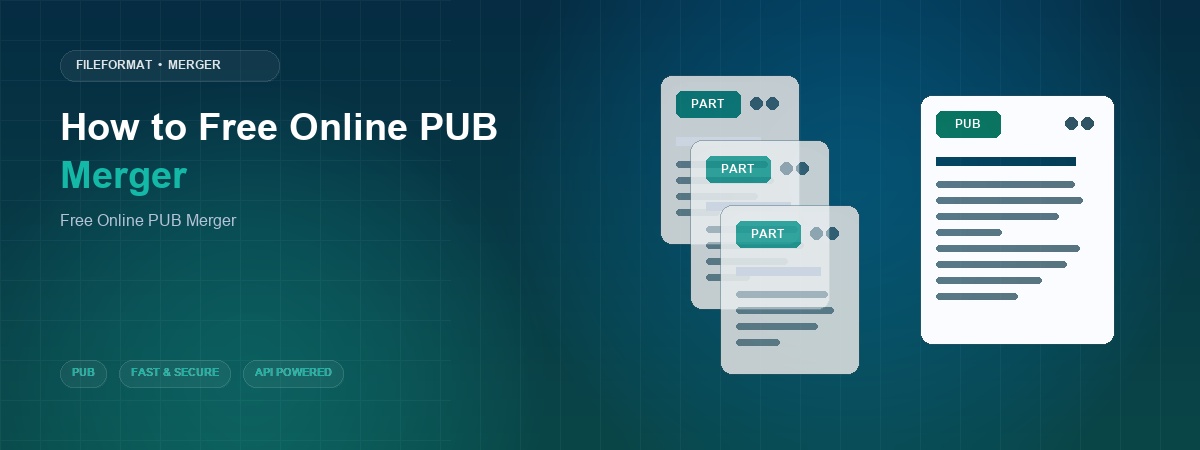
Understanding PUB Merging
Microsoft Publisher files are essentially collections of pages, each with its own layout, text boxes, and embedded graphics. Unlike PDF, which is designed for fixed presentation, PUB files retain editable elements that can be rearranged or restyled. When you need to combine several of these files, the challenge is to maintain the integrity of each page while creating a single, continuous document. A naïve copy‑and‑paste approach often breaks links to images, loses custom fonts, or misaligns objects, especially when the source files use different page dimensions.
The online merger works by parsing each PUB file’s internal structure, extracting the page objects, and then re‑assembling them into a new PUB container. Because the process happens on FileFormat’s servers, it can handle large batches without taxing your local machine’s resources. The tool respects the original page order you specify, so you can control the flow of content—whether you want a chronological sequence, a thematic grouping, or a custom arrangement based on client requirements.
Another advantage of using a dedicated merger is consistency in output. The service normalizes page settings such as margins and orientation, ensuring that the final document looks uniform even if the source files were created with different templates. This is particularly useful for corporate branding, where every page must adhere to a strict visual identity. By preserving vector graphics and high‑resolution images, the merged PUB retains the same print quality as the individual files, avoiding the pixelation that can occur when converting to raster formats first.
Security is also a key consideration. The FileFormat merger processes files in a sandboxed environment, encrypts data in transit, and automatically purges all uploaded content after the merge is finished. This means you can trust the service with confidential marketing materials, internal reports, or any proprietary design work without worrying about data leakage.
Real‑World Use Cases for a PUB Merger
Weekly Newsletter Compilation – Many organizations produce separate Publisher files for each department’s news. Instead of manually stitching them together, the merger can combine all departmental newsletters into a single, paginated issue ready for distribution.
Marketing Campaign Packages – Agencies often create multiple flyers, brochures, and product sheets for a single campaign. By merging these assets, they can deliver a comprehensive campaign packet to clients, simplifying review and approval processes.
Event Programs and Schedules – Conferences may have individual PUB files for keynote speakers, workshop descriptions, and sponsor pages. A quick merge produces a unified program booklet that can be printed or shared digitally with attendees.
Educational Handouts – Teachers preparing a series of lesson handouts can merge them into one file, making it easier for students to download a complete study guide rather than juggling multiple documents.
Client Portfolio Presentation – Freelance designers often need to showcase a series of past projects. Merging each project’s PUB file into a single portfolio allows for a polished, professional presentation that highlights the designer’s range of work.
In each scenario, the free online merger saves hours of manual labor, reduces the risk of formatting errors, and delivers a polished final product that maintains the high quality of the original Publisher files.
How to Merge PUB Files Online
In this section you’ll learn how to combine several PUB documents into one seamless file using the free FileFormat online merger. The process is straightforward, requires no software installation, and works from any modern web browser.
Open the merger tool – Visit the online FileFormat PUB Merger page. The interface loads quickly and presents a clear area for file selection, along with options to add files from your computer, Dropbox, or Google Drive.
Upload your PUB files – Click the “Add Files” button and choose the PUB documents you want to merge. You can drag and drop files from local storage, browse your Dropbox account, or connect to Google Drive to select files stored in the cloud. The tool accepts multiple uploads at once, displaying each file in a list for easy reordering.
Arrange the file order – After the files appear in the list, use the up and down arrows to set the exact sequence you need. The order you define here will be the order of pages in the final merged document. If you need to remove a file, simply click the delete icon next to its name.
Start the merge – Once you’re satisfied with the arrangement, press the “Merge PUB” button. The service processes the files on FileFormat’s secure servers, preserving all layout elements and combining them into a single PUB file. A progress bar shows the status, and you’ll receive a notification when the merge is complete.
Download the merged file – When the process finishes, a download link appears. Click it to save the merged PUB to your computer, or choose to receive a shareable link that you can send to colleagues. The result is provided as a single PUB file, ready for further editing or direct distribution.
The entire workflow takes just a few minutes, even for large batches of files, and eliminates the tedious manual steps that traditionally accompany PUB merging.
Conclusion
Merging multiple Microsoft Publisher files no longer requires a heavyweight desktop application or time‑consuming manual work. FileFormat’s free online PUB merger offers a secure, fast, and completely browser‑based solution that preserves the original design quality while giving you full control over page order. Whether you’re assembling newsletters, marketing kits, or event programs, the tool streamlines the process and lets you focus on content rather than technical hurdles. Give the merger a try today and experience how effortless PUB consolidation can be.
Ask a Question
If you have any questions or inquiries, feel free to reach out to us on our free support forum.